

Summary:
-
Rebooting your router once a month clears memory buildup, fixes small network problems, and enhances security.
-
Regular resets help the router run efficiently, eliminate slowdowns, and refresh the IP address for better connection quality.
-
It is recommended to restart your router when experiencing slow speeds, disconnections, buffering, or inactive smart home devices.
It is a tiny routine at home that most individuals do not remember until when the Wi-Fi buffers in the middle of the film. Your router is always on and it is taking care of all the devices connected in your house. It also has the advantage of regular resets like any other technology, that keeps its pace, stability, and the general health of its network.
The General Rule: Once a Month
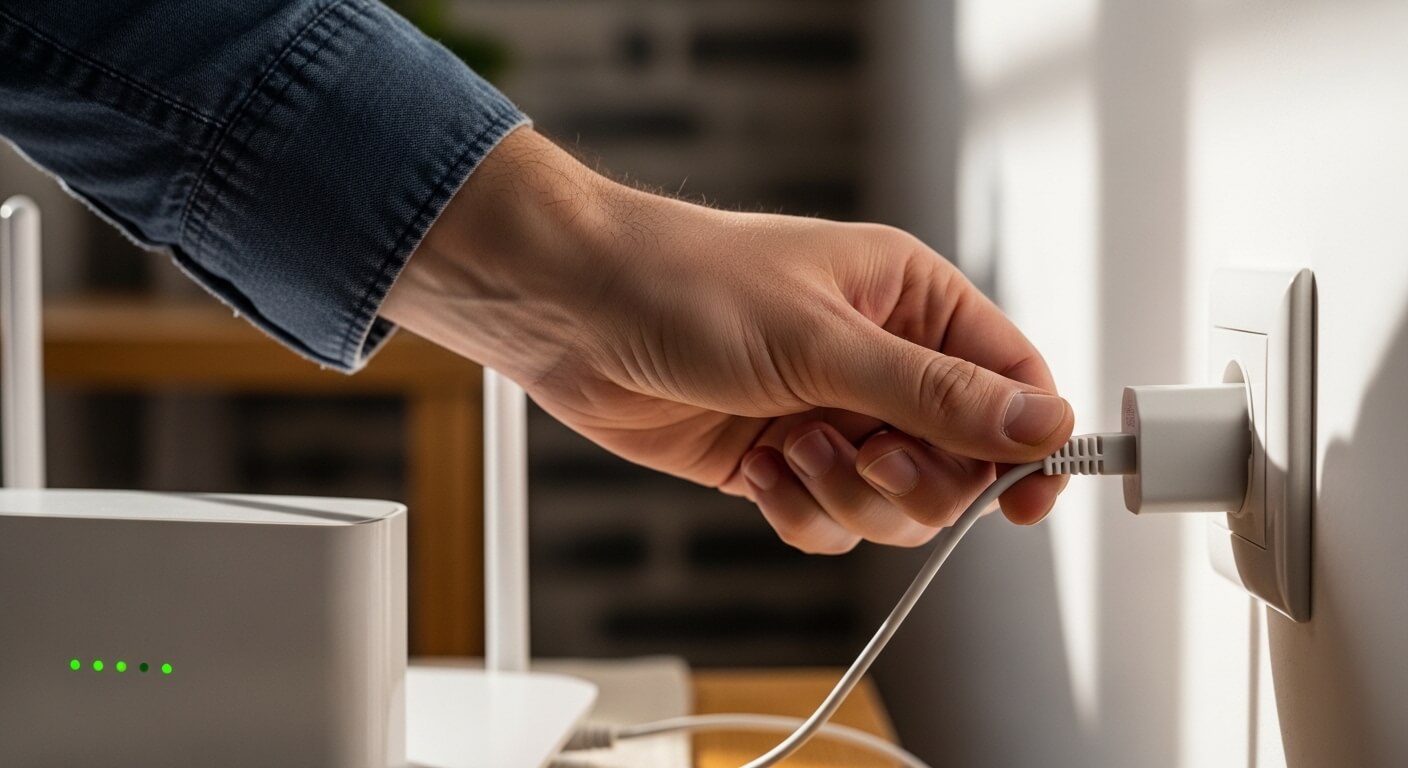
Rebooting your router after every 30 days is a good practice of maintaining your router. A monthly restart will empty the temporary memory, will reestablish connections, and will eliminate slowdowns. Regular resets will also assist in getting your internet to run well particularly in a household where many devices are streaming online, playing games, or working at the same time.
ADVERTISEMENT
Clears Memory Buildup
Routers handle a lot of data on a daily basis. Temp files and cache data are built up with time and this may slow down performance. To clear this accumulation, it is recommended to restart your router to enable it to work more efficiently. This is a very easy way of fixing problems before they spiral out of control and keeps your network running.
Fixes Small Network Problems

ADVERTISEMENT
When the internet is suddenly sluggish or connecting devices are not working, a restart will fix small glitches. The process of re-booting will refresh the communication between the devices and the router, which may tend to remove any dropped signal or unstable connection issues that may be causing the streaming session, working online or playing on the computer.
Refreshes Your IP Address

You can restart your router and it may re-demand an IP address of your internet service provider. This reboot will be able to enhance the quality of connection, minimize the network conflicts, and enable a device to restart without any problems. It is also convenient in case there are several gadgets that are connected to the same network and which periodically slow down.
Enhances Security

Although rebooting is not a permanent alternative to proper cybersecurity, it can disrupt some forms of malware or unauthorized access based on established connections. Periodic restarts are an addition to security measures, which helps your devices and network to defend against small vulnerabilities that would otherwise be overlooked.
When You Should Reboot in a While

The problem may require you to restart your router as soon as you observe a significantly slow speed, excessive disconnections, frequent buffering, or inactive smart home devices. All these indications are that the memory or connections of the router are overloaded and a simple reboot will get things back on track.
The Right Way to Reboot

In order to restart, one should disconnect the router, wait at least half an hour or one minute. Re-plug it and leave it two to five minutes to start completely. In case you have a separate modem, you have to restart the modem after which you can then start up the router so as to connect without any problems.
Bonus Tip: Automatic Re-boots

Other current routers have the feature of automatically re-rebooting once a week or a month. This can be used to ensure your network remains optimized (which is a nice feature when you have other users and devices connected to the network) and this feature performs consistently, even without any human intervention.